Use OVIS
OVIS can operate as a UVC USB camera or provide an RTSP network stream. Video output, AI features, and overlays are configured through OVIS Web. UVC is enabled by default, and exactly one of UVC or RTSP must remain active.
Complete the initial setup
- Assemble the OVIS boards, then connect OVIS to the computer with a data-capable USB cable.
- Flash the current OVIS firmware when setting up a new board or updating the device.
- Open OVIS Web in the latest Google Chrome or Microsoft Edge.
- Select Search devices. Initialize the device if it is marked Needs setup, or select Connect when it is already online.
- Open the configuration workspace and choose the required video output mode.
During initialization, OVIS Web assigns a local management address in the form 192.168.X.1. Keep a note of this address; RTSP playback uses it later.
For the full discovery, initialization, and configuration workflow, see Manage OVIS with OVIS Web.
Use OVIS as a UVC camera
UVC mode exposes OVIS as a standard USB video device. It is suitable for video-conferencing software, recording applications, and other programs that accept a USB camera.
- Connect to OVIS in OVIS Web.
- In Output service, select UVC.
- Configure the main-stream frame rate and any required AI or OSD settings.
- Select Save and apply, confirm the output change, and wait for OVIS Web to reconnect to the same device.
- Open the camera application on the computer and select the OVIS video device.
- Choose one of the resolutions and frame rates advertised by OVIS in the camera application.
Switching to UVC changes the USB device layout and may briefly disconnect the management network. Wait for the apply task to finish before opening or refreshing the camera application.
View an RTSP stream
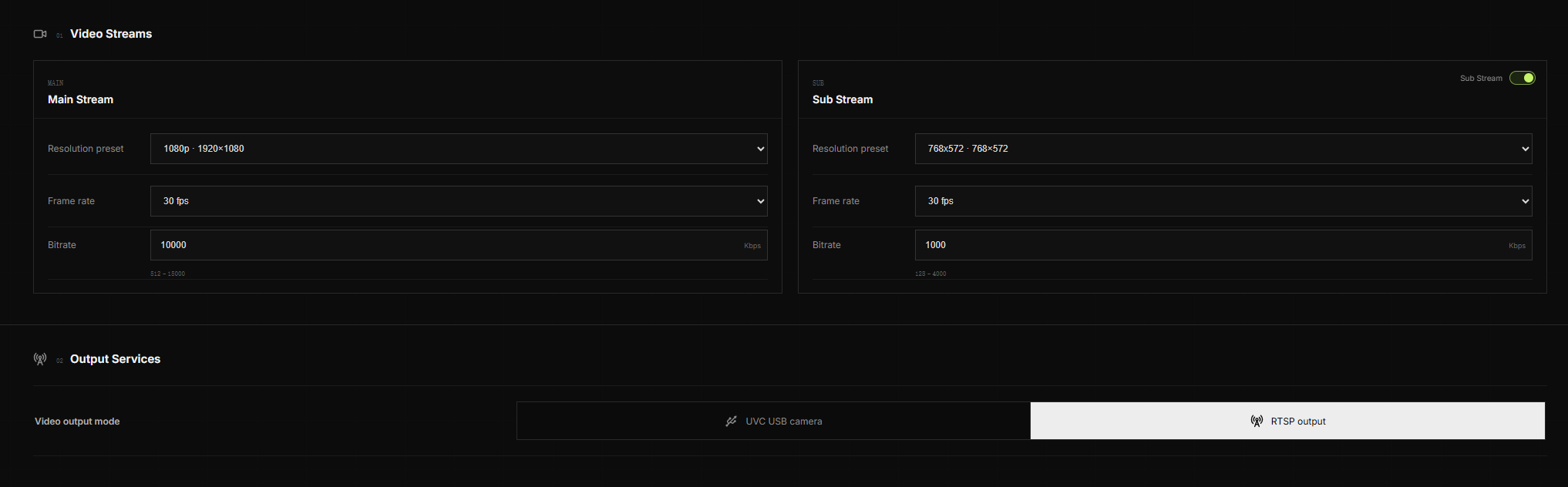
RTSP mode sends encoded video over the USB NCM management network. The computer does not need an Internet connection to view the stream.
- Connect to OVIS in OVIS Web.
- In Output service, select RTSP.
- Configure the main-stream frame rate and bitrate. Enable and configure the sub-stream when a second, lower-bandwidth stream is required.
- Select Save and apply, then wait for the configuration task and reconnect check to complete.
- Open the stream in an RTSP-compatible player such as VLC,
ffplay, or OBS Studio.
Replace X with the management subnet assigned during initialization:
Main stream: rtsp://192.168.X.1:8554/live0
Sub-stream:  rtsp://192.168.X.1:8554/live1
For example, a device at 192.168.42.1 uses:
rtsp://192.168.42.1:8554/live0
In VLC, open Media > Open Network Stream and paste the URL. With FFmpeg installed, the main stream can also be opened from a terminal:
ffplay -rtsp_transport tcp rtsp://192.168.42.1:8554/live0
live1 is available only while the sub-stream is enabled. If the management subnet changes, update the address in the RTSP URL.
Enable AI features
OVIS runs supported AI workloads on the device. Results can be drawn directly on the UVC or RTSP video through OSD settings.
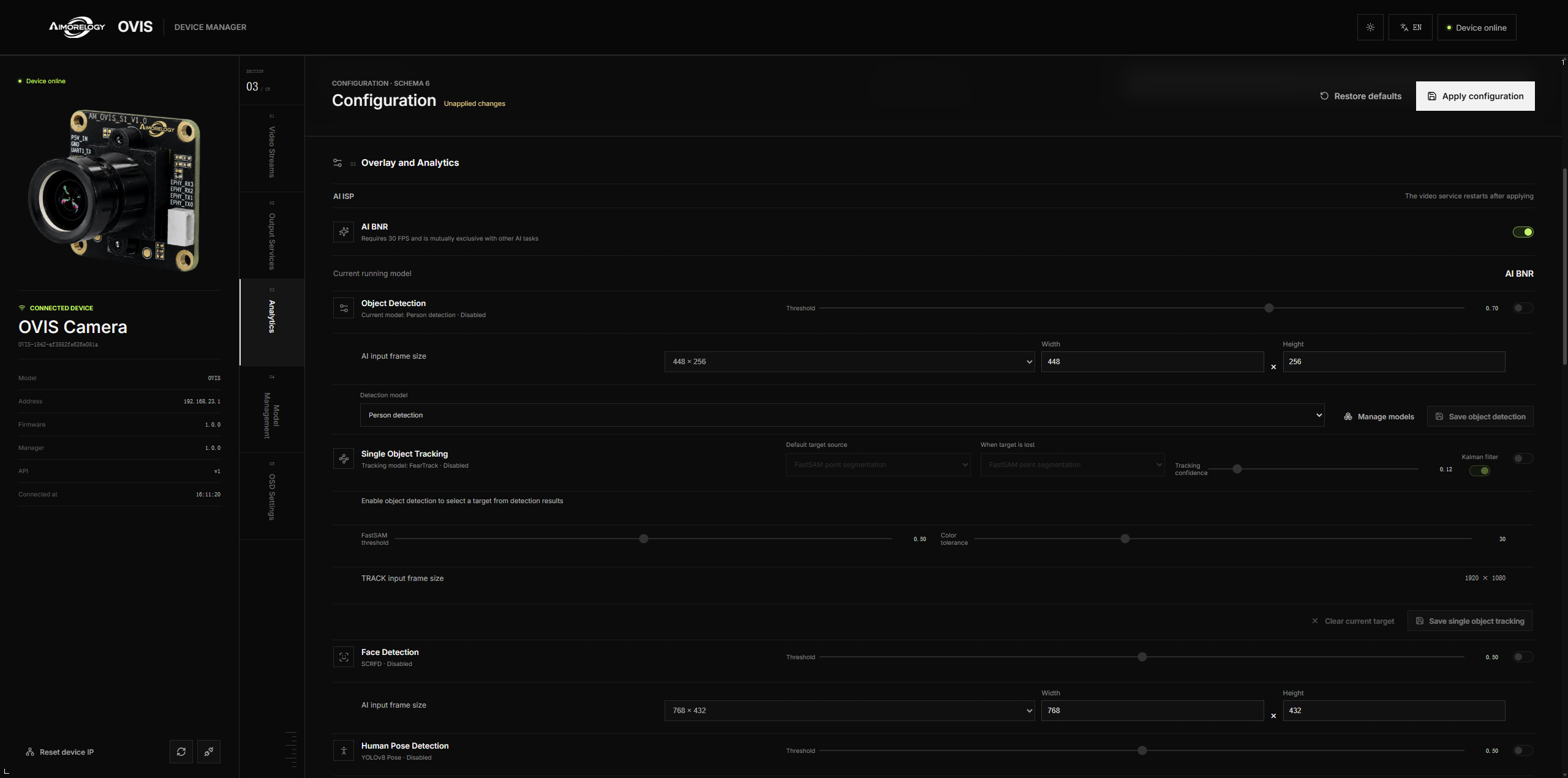
Object detection
- Open AI and tracking in OVIS Web.
- Enable object detection.
- Select the built-in person model, the built-in person-and-vehicle model, or an active custom detection model.
- Set the confidence threshold and AI processing frame size.
- In OSD settings, enable the detection box and configure its color, thickness, and label style.
- Select Save and apply and wait for the task to complete.
A higher confidence threshold removes more low-confidence results. A lower threshold displays more candidates and can also increase false detections.
Single-object tracking
- Enable Single-object tracking.
- Choose the default target source and the fallback source used when the target is lost.
- Adjust the tracking score threshold and other available parameters as required.
- In OSD settings, enable the tracking box or center reticle.
- Select Save and apply.
Object detection and single-object tracking have independent switches and can operate together. Other TPU workloads may conflict with them; OVIS Web displays a confirmation or a device validation error when the selected combination is unavailable.
Apply and keep configuration changes
Changing a control only updates the browser draft. Select Save and apply to write the configuration to OVIS.
Keep the page open while the task validates, saves, applies, reconnects, and verifies the new configuration. Video output or AI changes may temporarily interrupt UVC, RTSP, or the management connection. When the task succeeds, the saved configuration is restored the next time OVIS starts.
Do not disconnect USB power while an apply task is running.
Finish using OVIS
Close the camera or RTSP player first. In OVIS Web, select Disconnect to stop browser-side monitoring and clear the current session. This action does not power off OVIS. Disconnect the USB cable only after configuration and model tasks have finished.
Troubleshooting
The UVC camera does not appear
- Confirm that UVC is selected and the latest draft was applied successfully.
- Wait for Windows to enumerate the USB video device after the output switch.
- Reconnect the USB cable, then reopen the camera application's device list.
- Close another application that may already be using the camera.
The RTSP stream will not open
- Confirm that RTSP is selected and the apply task succeeded.
- Check that the URL uses the current
192.168.X.1management address and port8554. - Use
live0for the main stream. Uselive1only when the sub-stream is enabled. - Confirm that the computer still has the OVIS USB NCM network interface.
AI results are not visible
- Confirm that the AI feature and its model are enabled.
- Check the confidence threshold and the feature's processing frame size.
- Enable the corresponding detection or tracking overlay in OSD settings.
- Read any resource-conflict or validation message returned by OVIS Web.
A setting did not take effect
Check whether Save and apply was selected and wait for the task to finish. If OVIS Web reports a rollback or revision conflict, use the configuration reloaded from the device and apply the change again.